Mobile app
Local Operator Mobile is the open-source, native iOS and Android client for the mobile relay: the sessions running on your computer, in your pocket. Follow a session as it works, steer it or stop it, answer the approvals and questions it raises, start new work, and move a session between your machines — reached through a Radient personal tunnel, or any tunnel or URL you run yourself plus the relay password.
In development. The app is built and exercised in the open — against a mock relay, a frame audit and its own test suite — but no build has been published yet: it is not in the App Store, TestFlight or Google Play, and no GitHub Release has been cut. Push notifications are designed, not built. Everything below is what the app on main does today; the repository is where it lives.
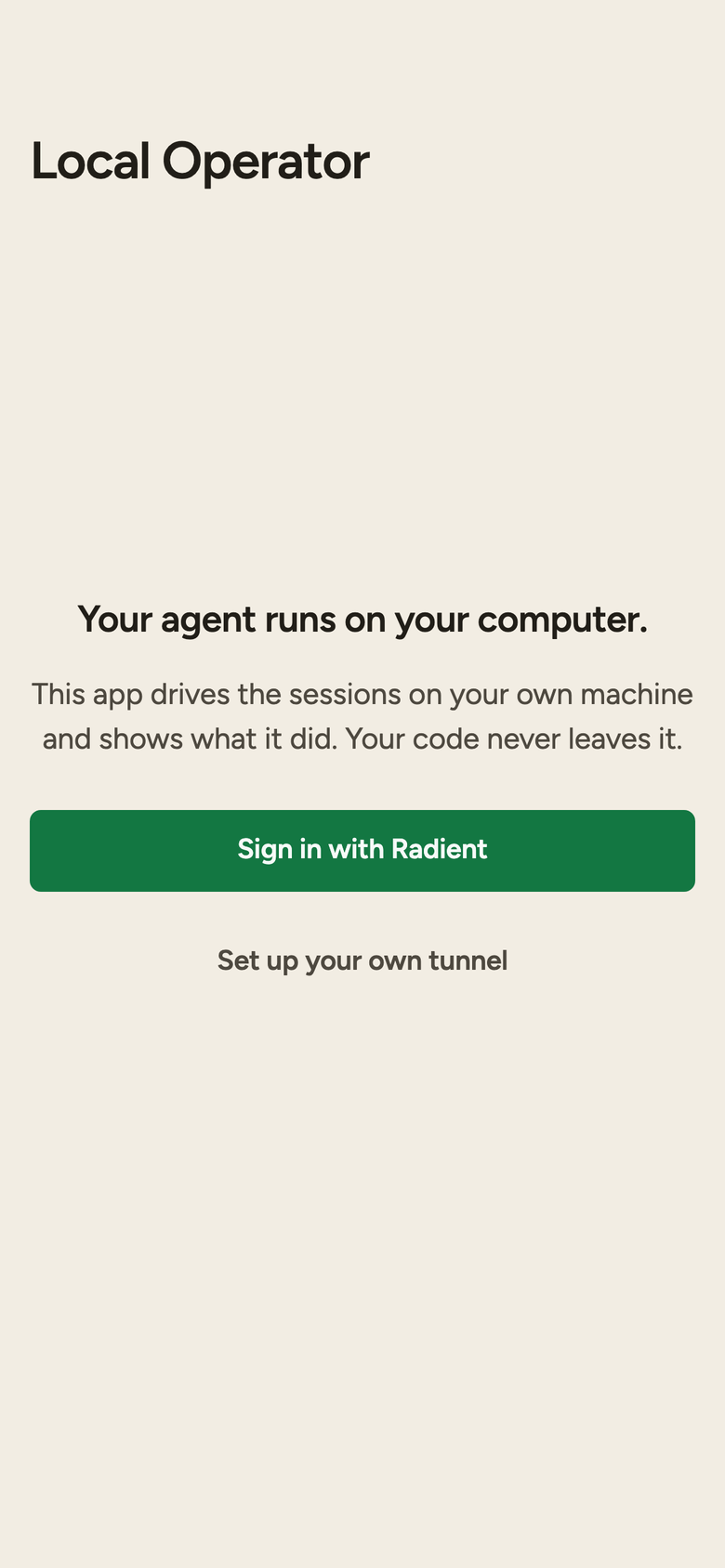
The captures on this page come from the app's own fixture corpus — every frame is the app driven against its mock relay — the conversations, session names and model labels in them are placeholders, not anyone's real sessions.
Getting connected
The computer side is the mobile relay that ships with Local Operator (lop mobile) — a supervised daemon that only listens on the loopback interface.
On your computer
Install the relay:
bashlop mobile install # macOS: a supervised service that starts at loginThen give the phone a way to reach it:
- A Radient personal tunnel (recommended).
lop login radientonce, then create and install the tunnel (lop tunnel create,lop tunnel install). The tunnel carries the authentication, so there is no relay password to copy. The runtime's tunnel docs walk through it. - Any tunnel or URL you run yourself. Put it in front of the relay's loopback port and set the relay password with
lop mobile password.
- A Radient personal tunnel (recommended).
On your phone
No store build exists yet. Today the app runs from its repository — build it (
pnpm install, thenpnpm ios,pnpm androidorpnpm dev:web), or sideload the debug APK that CI uploads.Sign in
Sign in with Radient — the app finds your personal tunnels for you; the tunnel handles authentication, so there is no relay password. Or Use an address and password — point it at any tunnel or URL you run yourself.
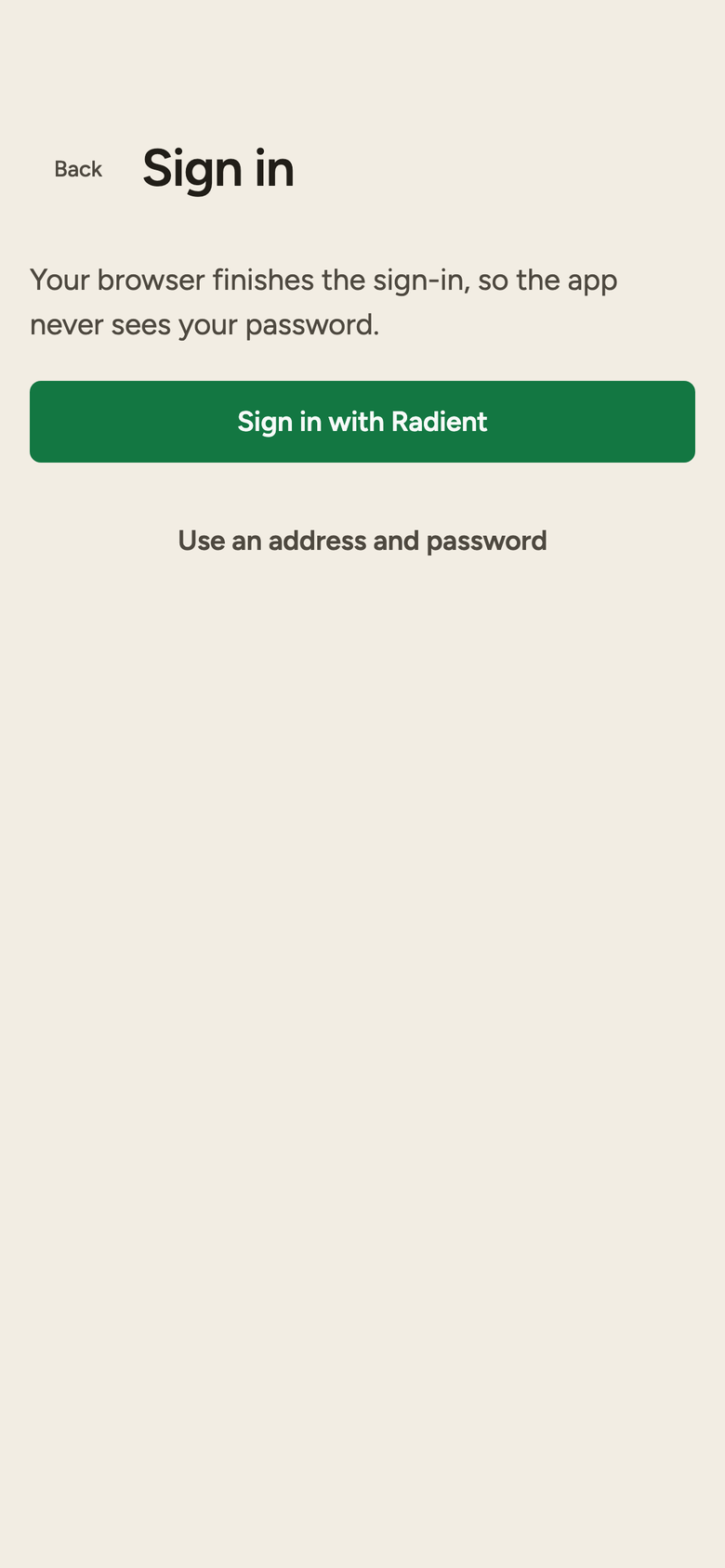
A tunnel that refuses, an expired login and a computer that is asleep each get their own explanation and a remedy. The mobile relay guide covers the computer side.
Sessions
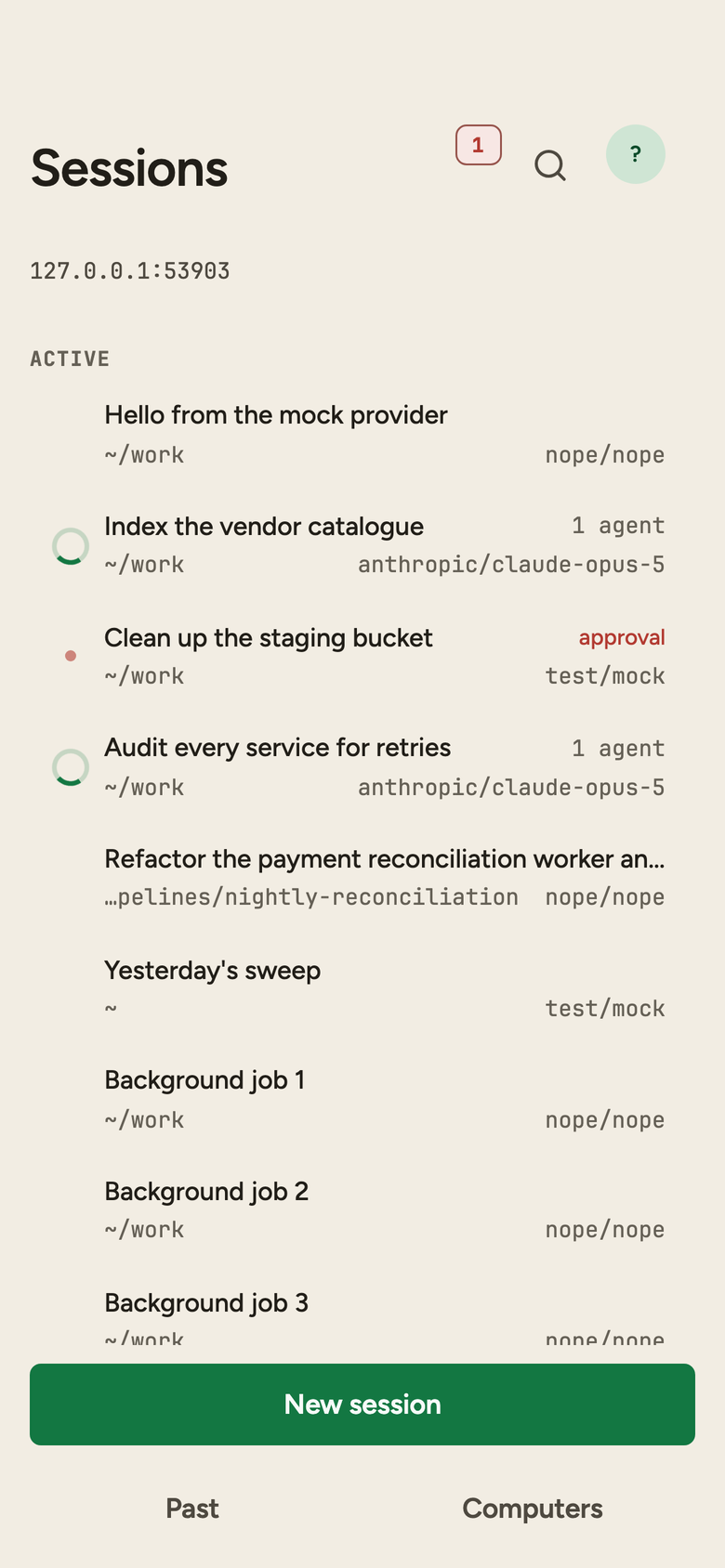
The app opens on a new chat: pick the folder on your computer where it will run, pick the model, and type the first message. The sessions panel sits behind it — every conversation on the connected computer, each row carrying its folder, its model and its state: running, waiting on you, or ended.
- Search filters the list, and searches past sessions by their contents. Open one from Past sessions and resume it.
- Remote sessions. With more than one computer, sessions from your other machines sit in the same list as first-class rows; a row you cannot reach names the device and says why.
- Move a session. Send a session to another computer, recall it back, or copy it. The receipt arrives phase by phase, and a refusal is the relay's own sentence, never an invented one.
The session view
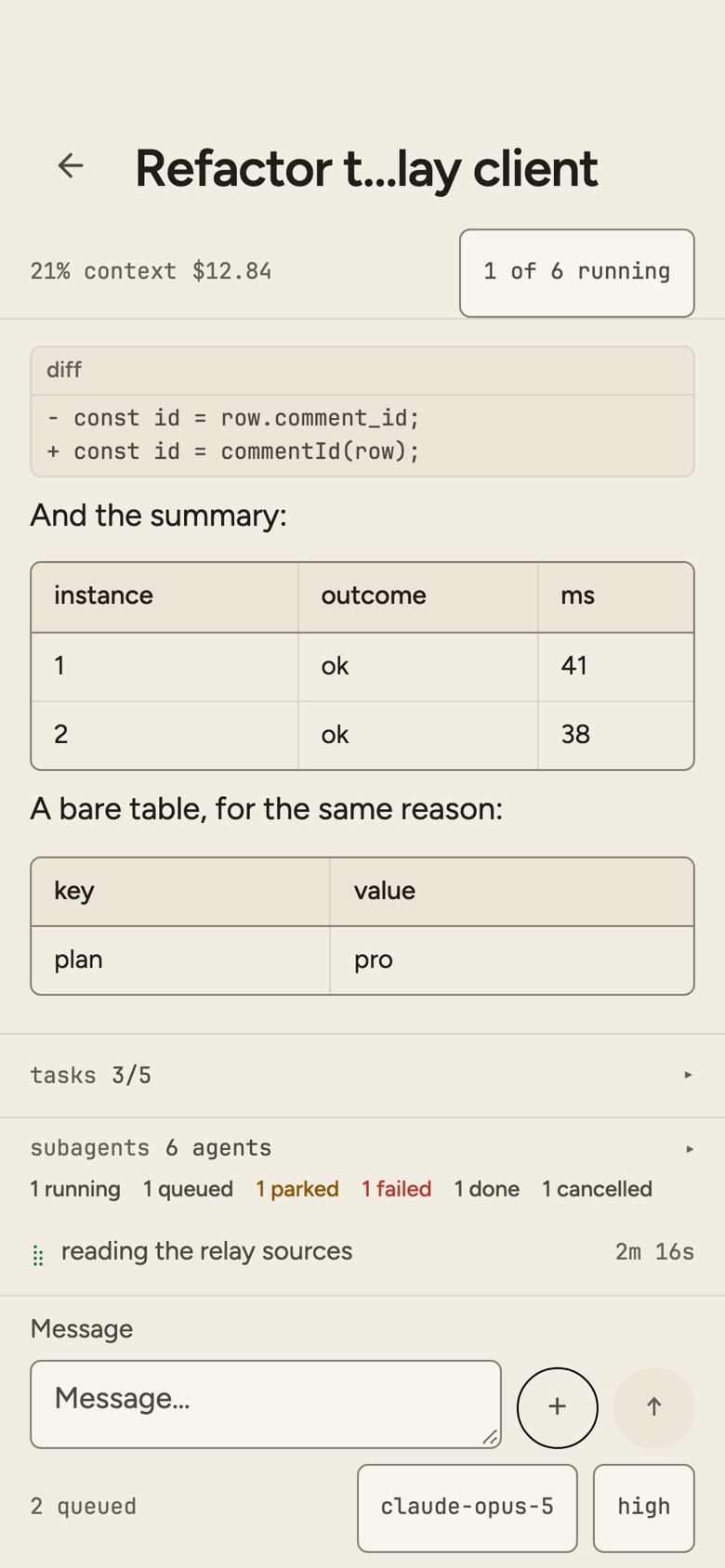
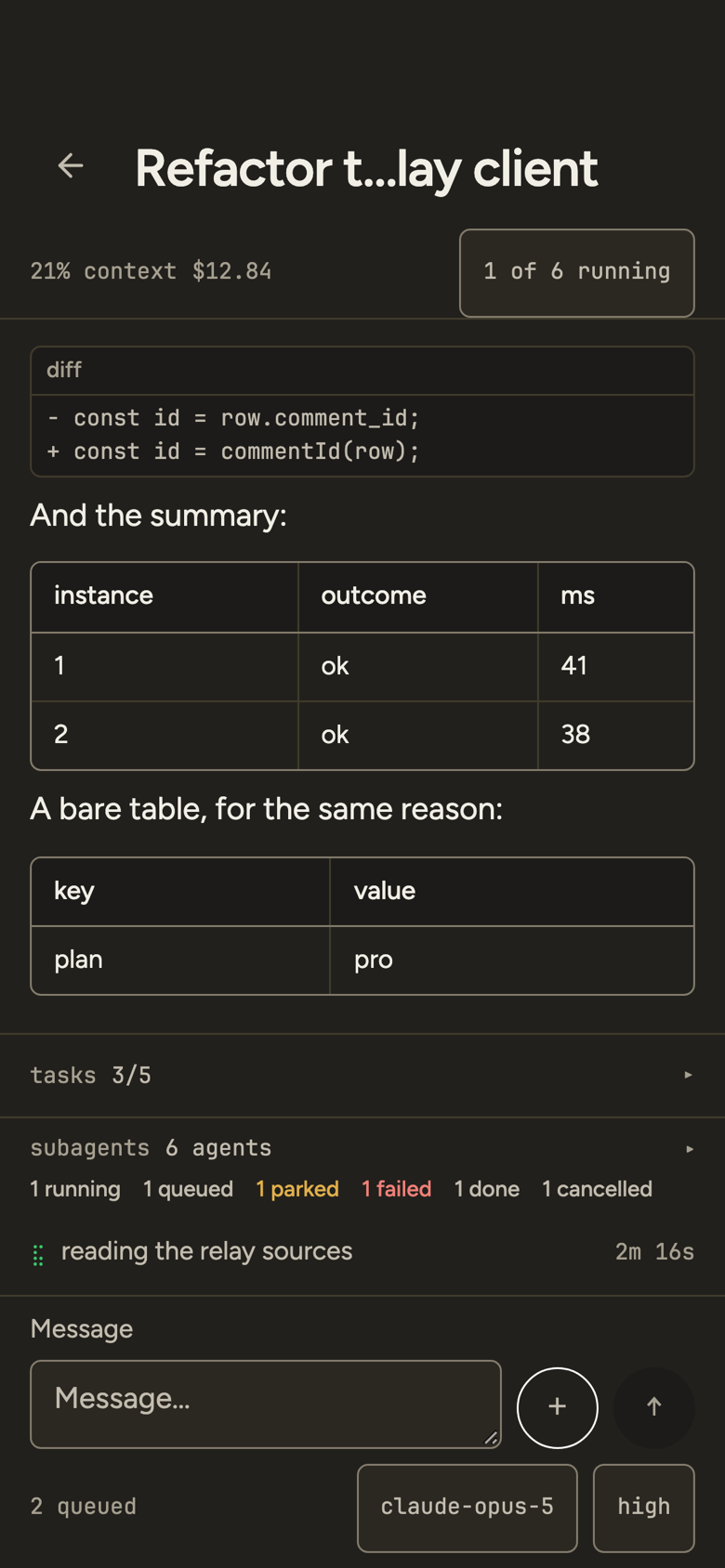
Open a session and the transcript streams in as it works: messages and markdown, code blocks, diffs and tables, tool calls with their durations, and images the agent produced. Two aids ride along:
- The checkpoint rail — a column of marks down the right edge of the transcript, one per user turn and per completed agent turn, read from the whole conversation rather than the window the phone has loaded.
- Find — the desktop's in-conversation search, over the transcript the phone holds: the sheet browses the hits, the bar steps through them.
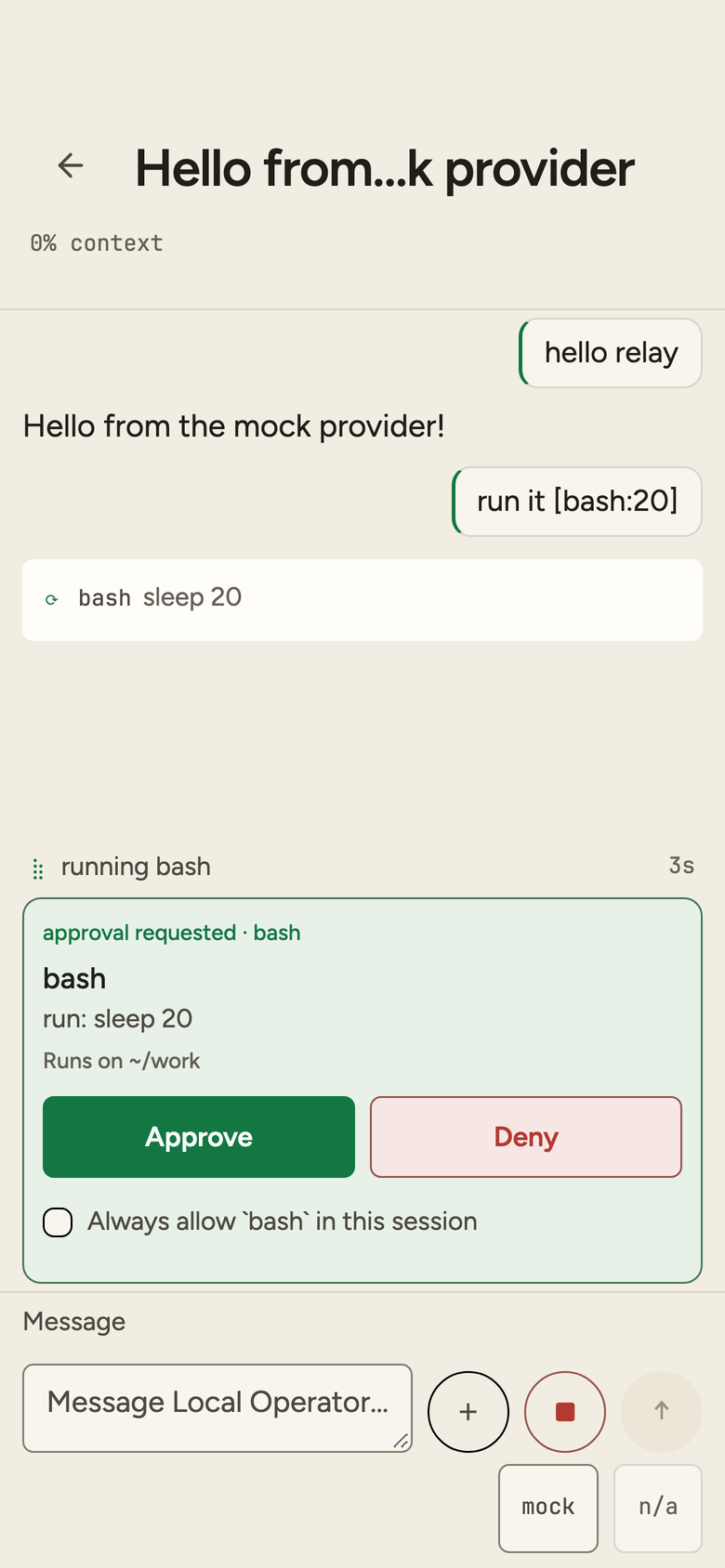
The session's to-do list and its subagents sit in strips above the composer, each opening into detail, and the composer is one control that never moves: send, steer a running turn, or stop it. Beside it are the session's model and reasoning effort; a leading / opens the session's own commands; and a photo or screenshot can go into the conversation. Approvals and questions arrive in the transcript where they were asked, and are answered there.
You stay in control of the pace: approvals surface as cards in the transcript — the command first, then Approve, Deny, or always allow for the session.
Schedules and projects
Both live behind the sessions panel's own routes. Schedules gathers every conversation that carries wakes and monitors into one screen — what is armed, overdue, dormant or expired. Arming, editing and cancelling stay on the desktop and the terminal. Projects shows each project's state and milestones, and takes the writes you need away from the desk: create a project, add or complete a milestone, delete behind a confirm.
Where it differs from the desktop and the terminal
- A remote control, by design. Nothing runs on the phone: the sessions, files and tools are all on your computer, and the app drives the same sessions the desktop app and the terminal see. If you already use the relay's phone pages, this is that surface native — platform sign-in, and a layout built for a phone rather than adapted to one.
- Some things stay desk-side. Schedules are read on the phone; arming and editing live on the desktop and the terminal. And the checkpoint rail marks the conversation without jumping between marks yet.