Desktop app
The desktop app is the same runtime in a full window: chat with a run-details pane, a projects board, schedules, a browser the agent can share, and the Agent hub. It ships its own backend, so a separate lop install is optional — it uses one when it finds it.
Install
Pre-built apps are available for macOS (.dmg), Windows (.exe) and Linux (.deb, .rpm, .AppImage):
- Downloads page — pick your platform
- GitHub Releases — the same installers, plus release notes
To run it from a terminal instead (Node.js 22.13.1 or newer):
npx local-operator-ui              # download and run in one command
npm install -g local-operator-ui   # or install it globally
First run
The first launch walks you through signing in to a provider. OAuth providers open the browser and use your existing subscription; API-key providers take a pasted key; and you can connect a Radient account for Radient Automatic, which picks a model for each step and saves a Pass on your machine.
Then the window opens on an empty chat. The rail on the left is the map:
- New chat (⌘N) and Search (⌘K)
- Agents and Projects — reusable agents, and durable workstreams
- Schedules — wakes with their cadence and run history
- Browser — a browser in the app the agent can drive
- Agent hub — community agents you can pull into your own setup
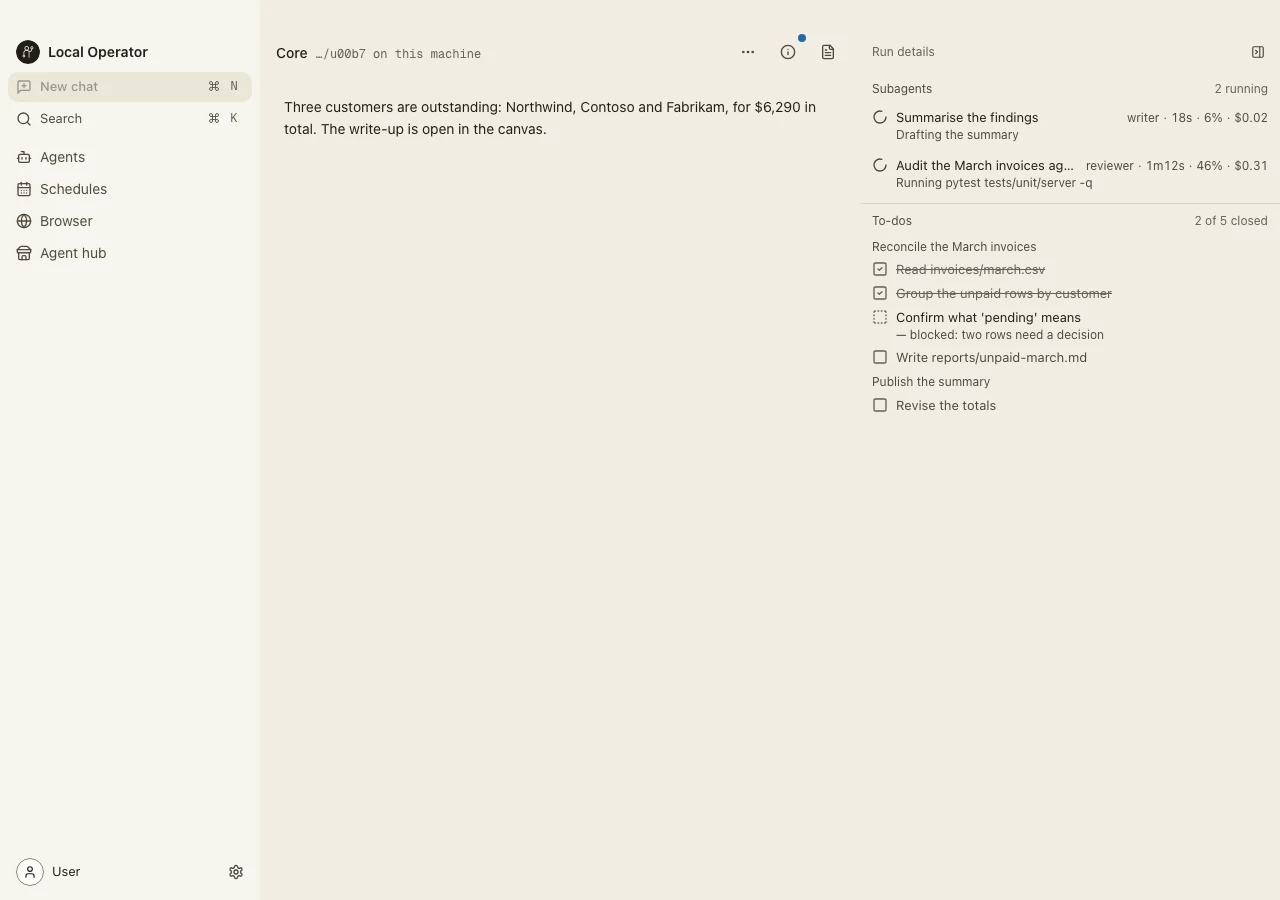
Chat and run details
The middle column is the conversation. On the right, run details keeps the work visible while it happens: which subagents are running (with elapsed time, context and spend), and the session's to-do list, updated as items close.
You stay in control of the pace:
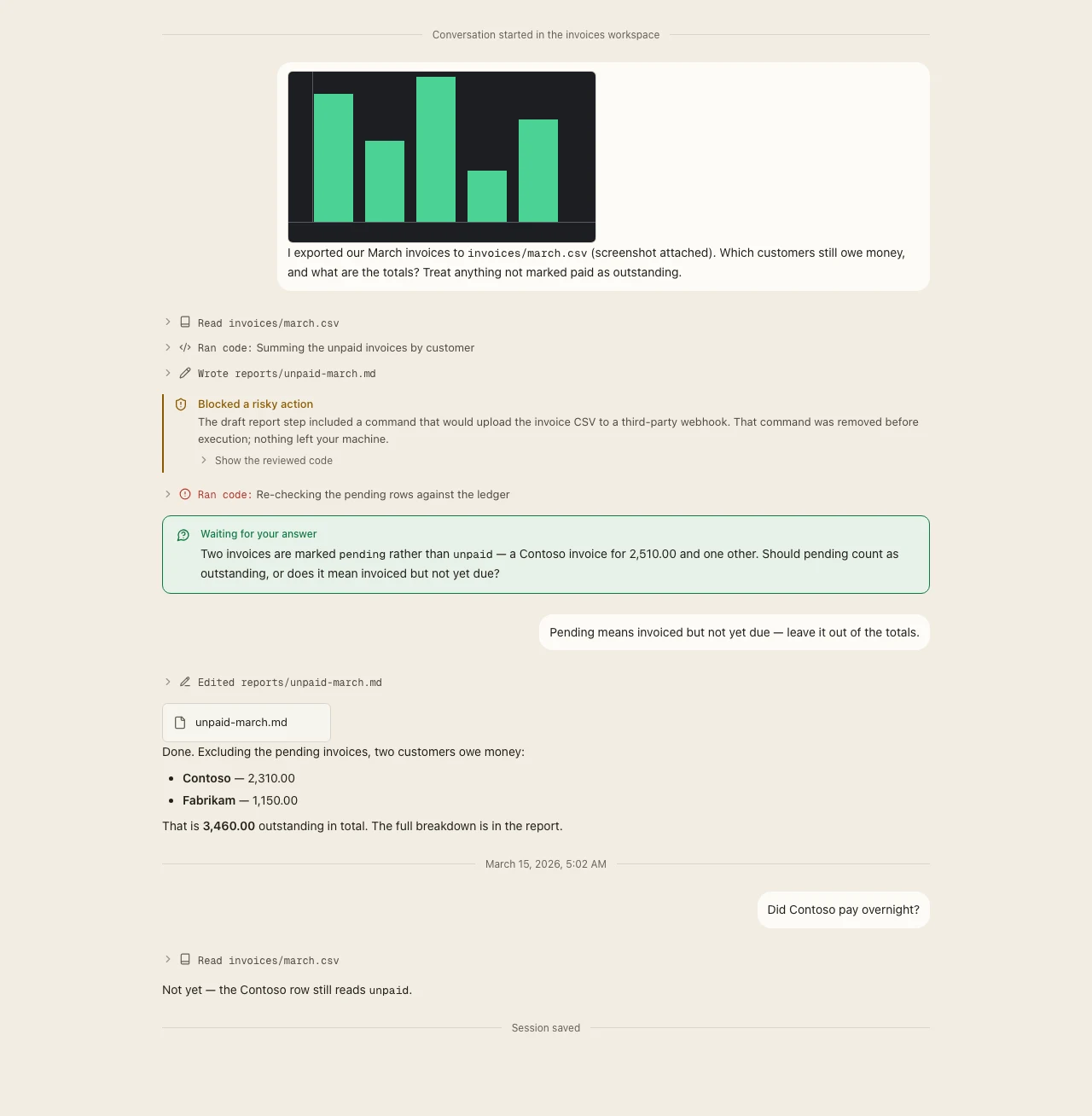
- Approvals surface as cards in the transcript — the exact command first, then Approve or Deny.
- Type while the agent works and your message lands as steering, at the next step.
- The composer's pickers switch the model and the reasoning effort without leaving the conversation.
The tool trace
Every tool call leaves a row in the transcript — no invisible action. Rows expand to the full command and its output, risky calls are held at an approval card, and questions from the agent show up in the same stream.
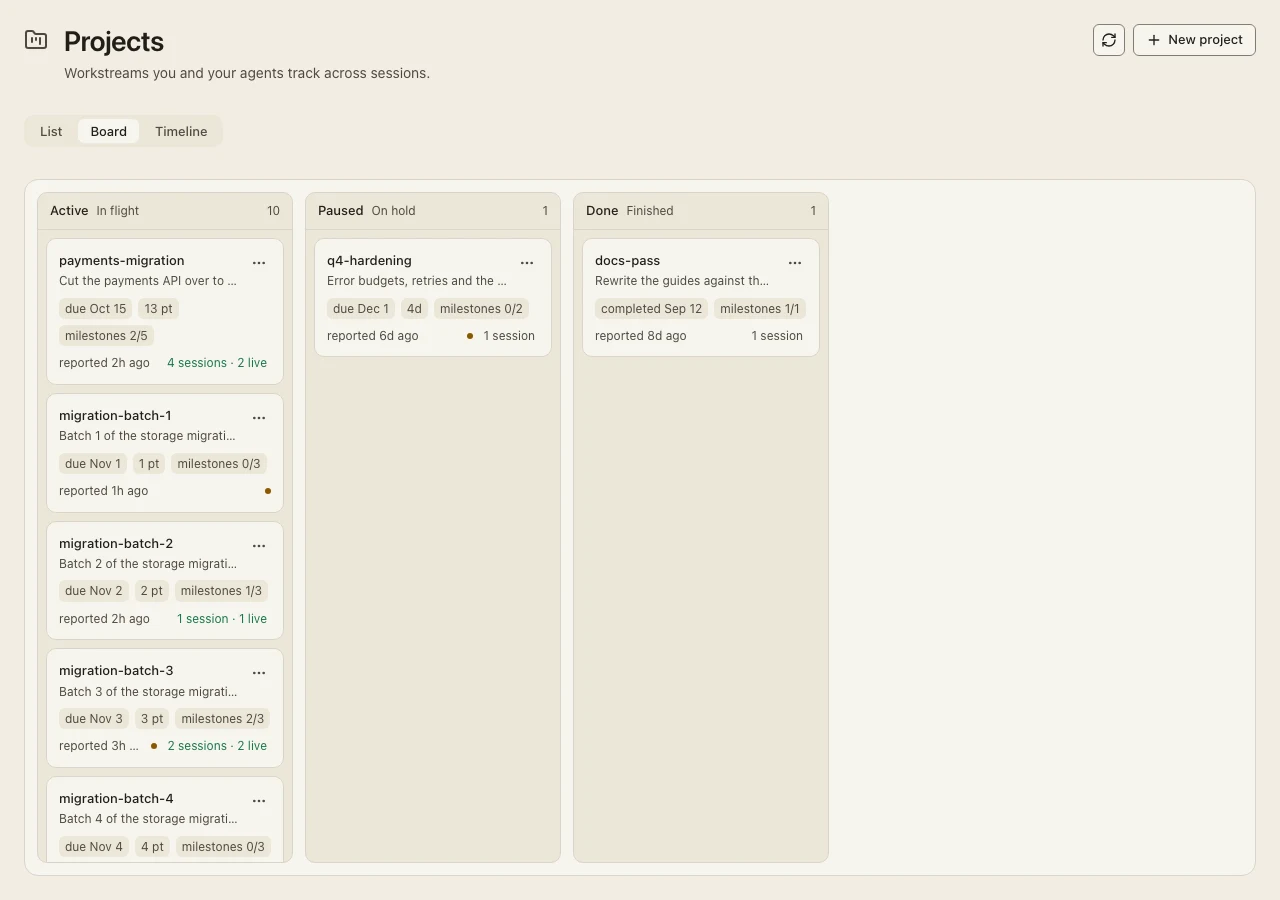
Projects and schedules
Projects gather related sessions into a durable workstream, so work that spans days or several conversations keeps its shape. The board shows each project's state at a glance.
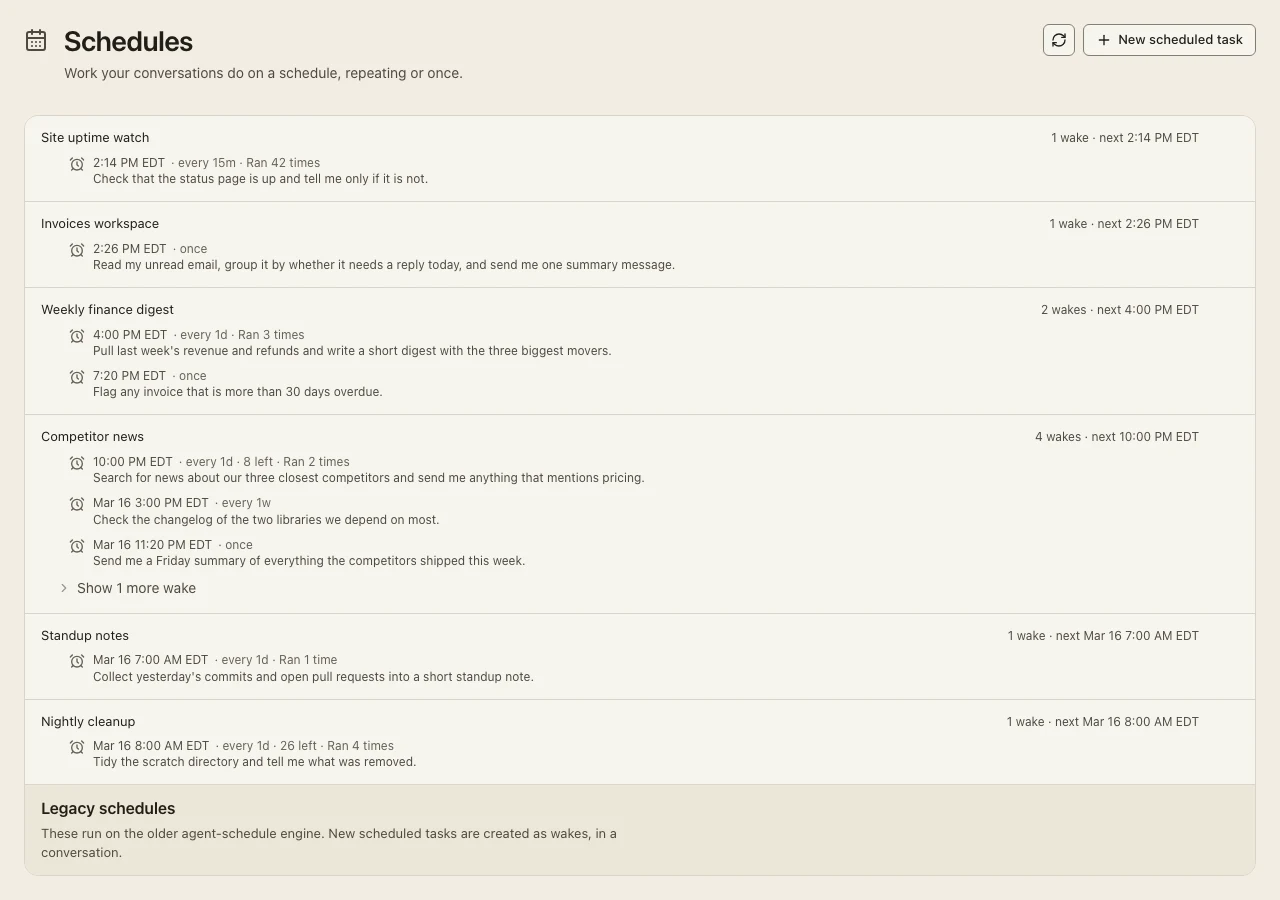
Schedules is the desktop view of wakes — future turns a session has armed for itself. Each row shows the next run, the cadence, and how many times it has fired. (How wakes behave is covered in Workflow automations.)
Themes
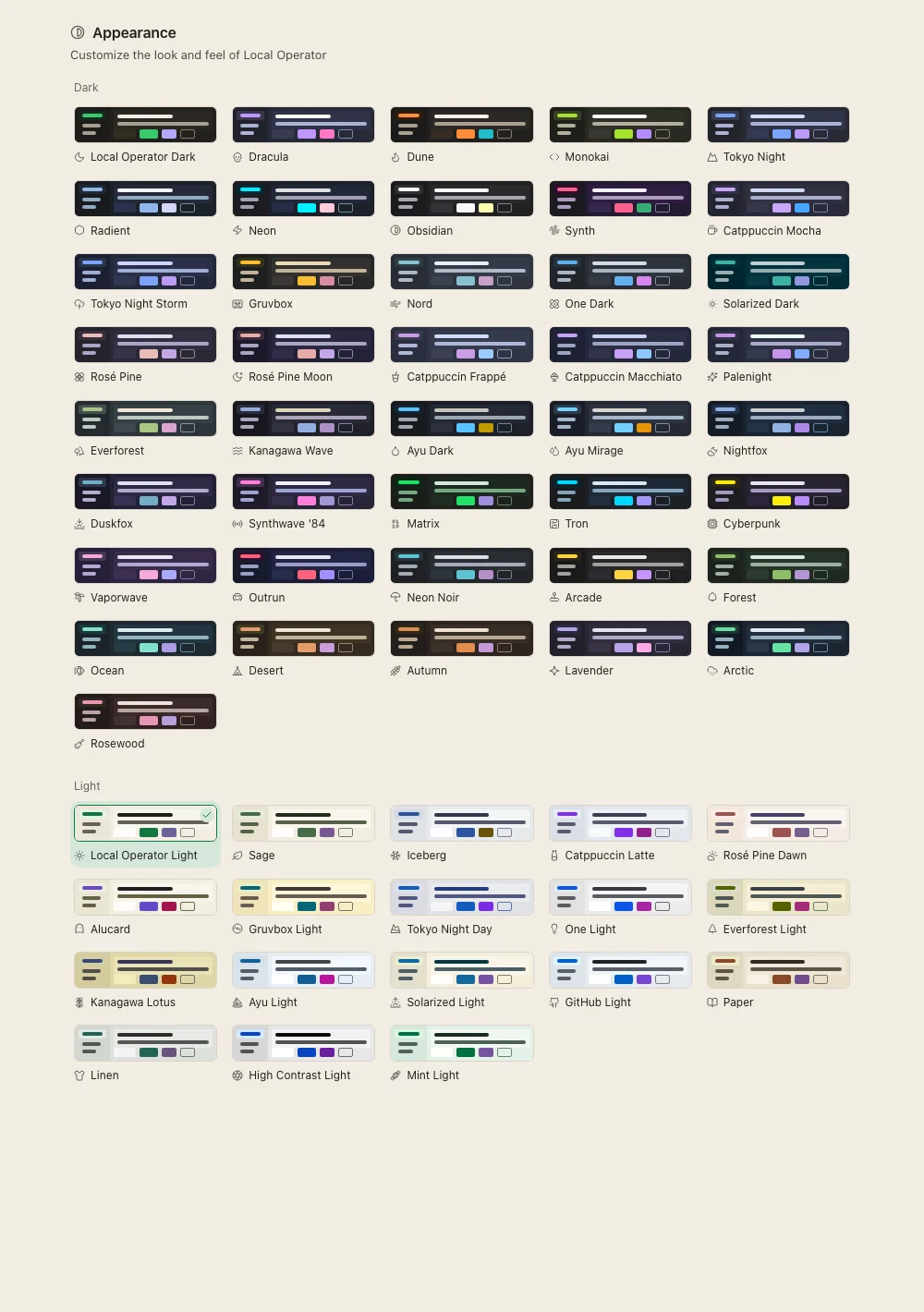
Settings → Appearance has 59 themes — grouped dark and light, from the brand's Local Operator Dark (the default) to Dracula, Gruvbox, Catppuccin, Tokyo Night and more. Pick one and the app remembers it across restarts.
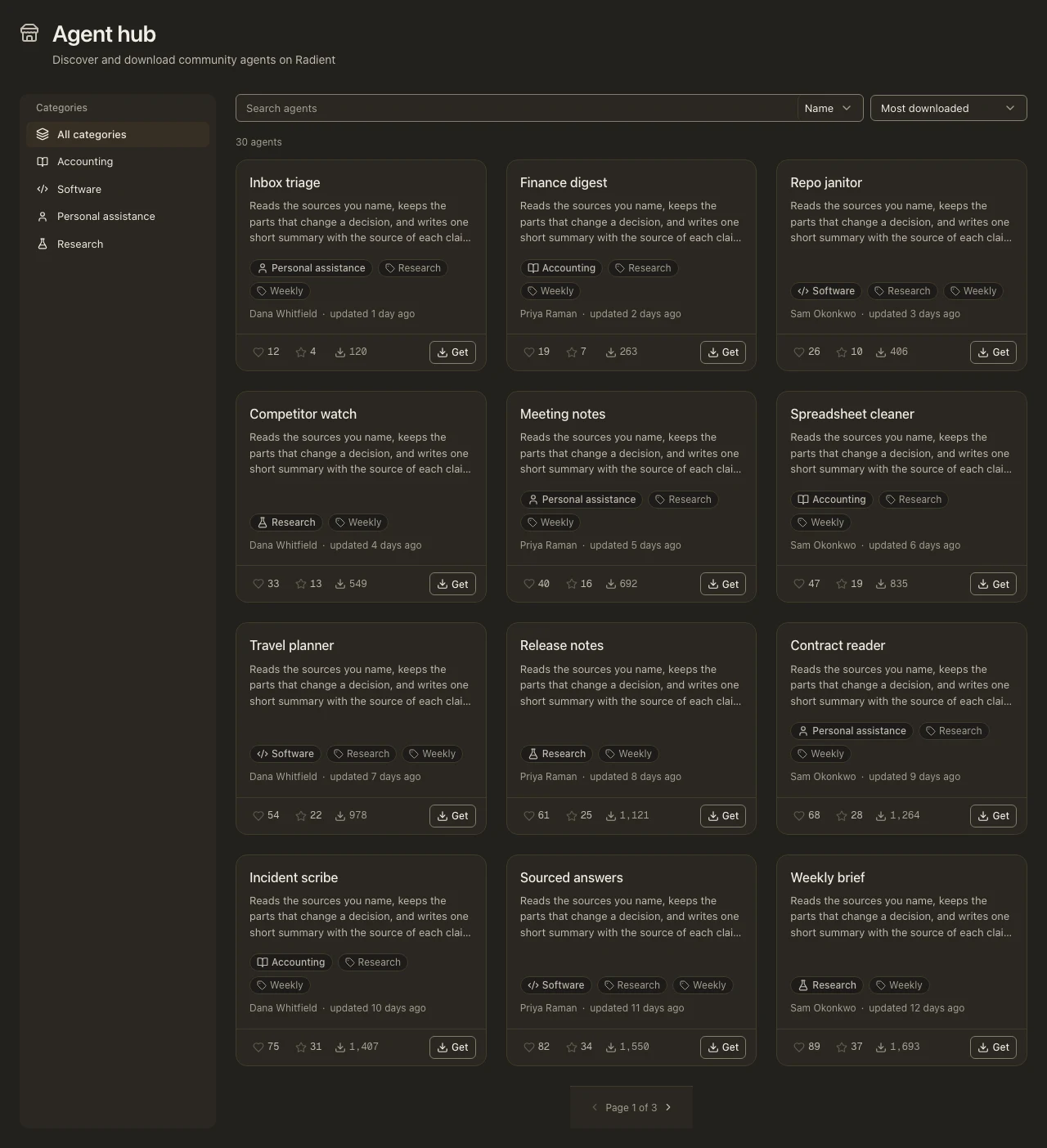
The Agent hub inside the app
The Agent hub page browses Radient's community registry without leaving the app: categories on the left, then agent cards with likes, downloads and a Get button that pulls the agent into your setup. The same registry is reachable from the CLI — see Agent Hub.
Updating
The app updates itself from GitHub Releases and checks on launch; a notification offers the install when a new version is out. If you ever need to install by hand, re-download from the downloads page — your sessions and settings stay where they are. The runtime side (lop update) is covered in Updating Local Operator.